
How can we help you?
-
How to unlock an account?
-
Login to your Trubicars account.
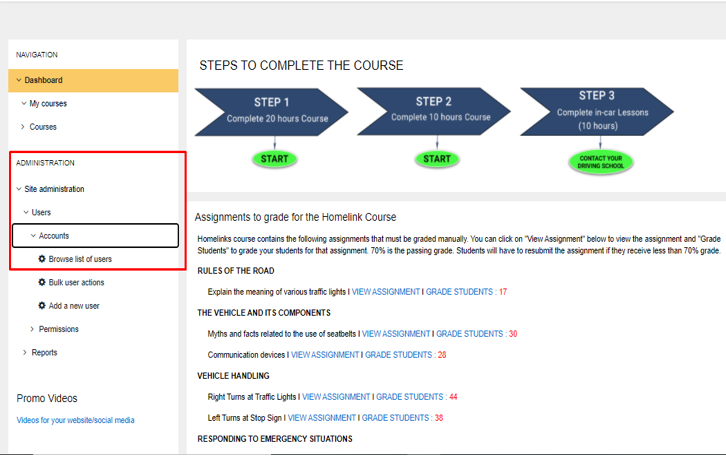
On the Dashboard, under Administration, go to Site Administration > Users > Accounts and click on ‘Browse list of users’ as shown in the screenshot below:
-
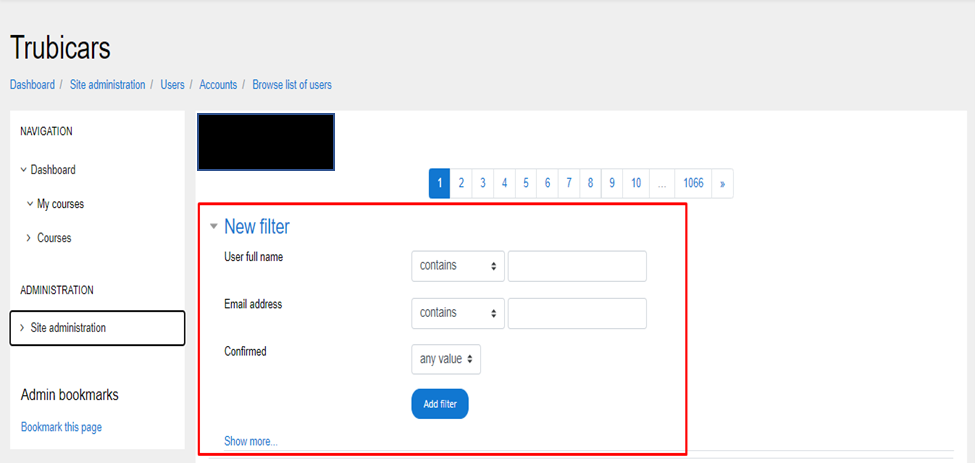
On the user database page, use “User full name” filter or “Email address” filter to find the student account you need to unlock as shown in the screenshot below: How to unlock an account picture 2
-
Under the student account, in the edit column, click on the “lock” icon to unlock student account as shown in the screenshot below:
-
Login to your Trubicars account.
-
How to manually confirm a student’s email address?
How to manually confirm a student’s email address?
- Login to your Trubicars account.
-
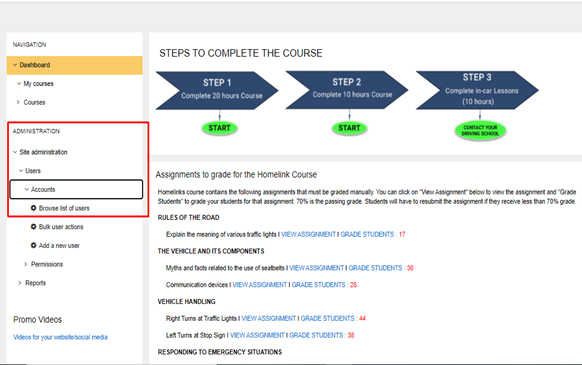
On the Dashboard, under Administration, go to Site Administration > Users > Accounts and click on ‘Browse list of users’ as shown in the screenshot below:
-
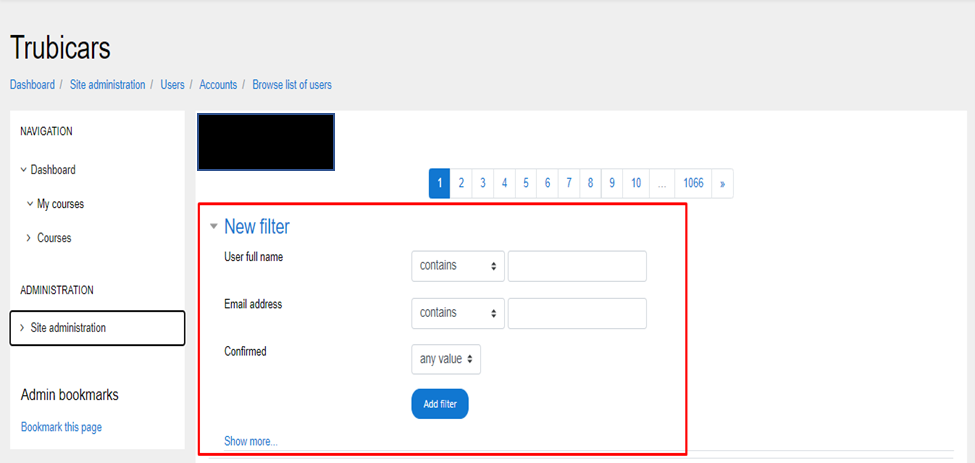
On the user database page, use “User full name” filter or “Email address” filter to find the student account whose email address you need to confirm manually,as shown in the screenshot below:
-
Under the student account, in the edit column, click on the “lock” icon to unlock student account as shown in the screenshot below:
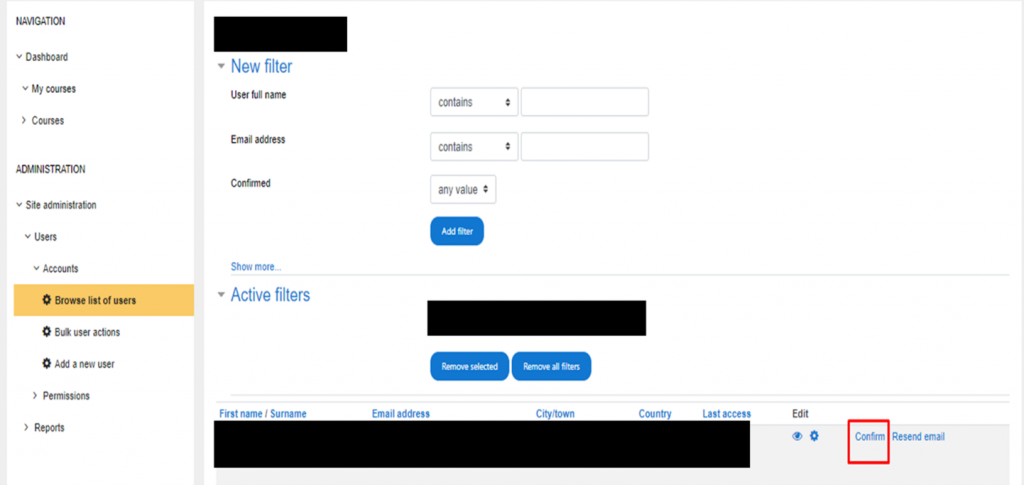
-
How to manually resend confirmation email to confirm a student’s email address?
- Login to your Trubicars account.
-
On the Dashboard, under Administration, go to Site Administration > Users > Accounts and click on ‘Browse list of users’ as shown in the screenshot below:
-
On the user database page, use “User full name” filter or “Email address” filter to find the student account whose email address you need to confirm manually,as shown in the screenshot below:
-
Under the student account, click on “Resend email” button to manually resend the confirmation email,as shown in the screenshot below:
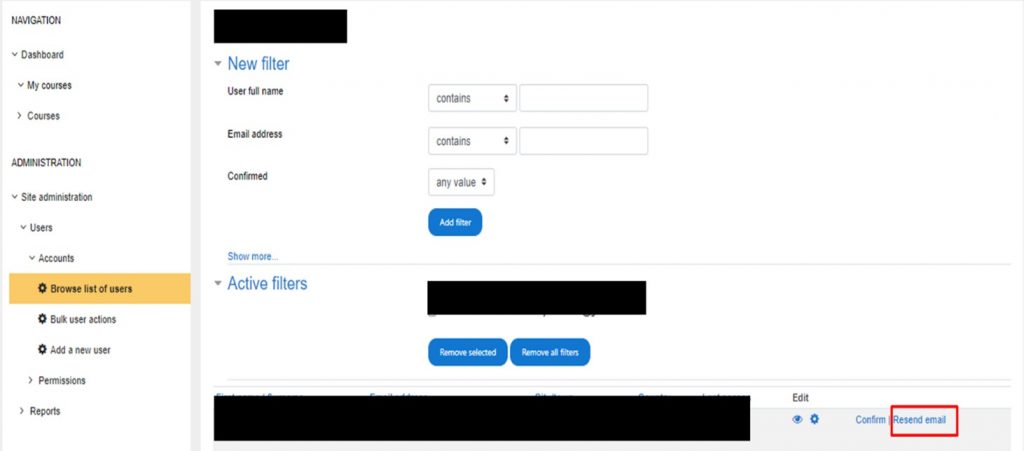
-
How to update student’s information such as username, password, email address and phone number?
- Login to your Trubicars account.
-
On the Dashboard, under Administration, go to Site Administration > Users > Accounts and click on ‘Browse list of users’ as shown in the screenshot below:
-
On the user database page, use “User full name” filter or “Email address” filter to find the student account whose information you want to update,as shown in the screenshot below:
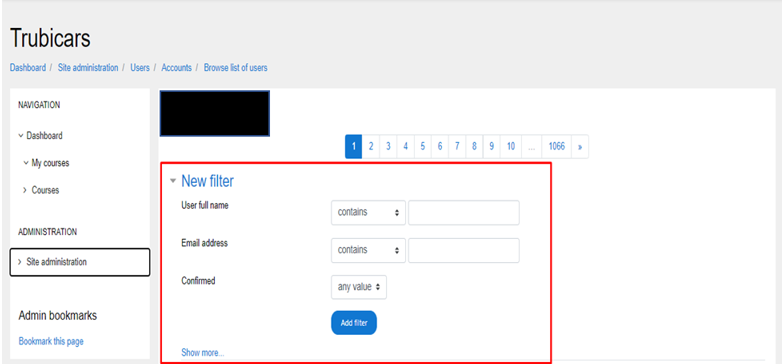
-
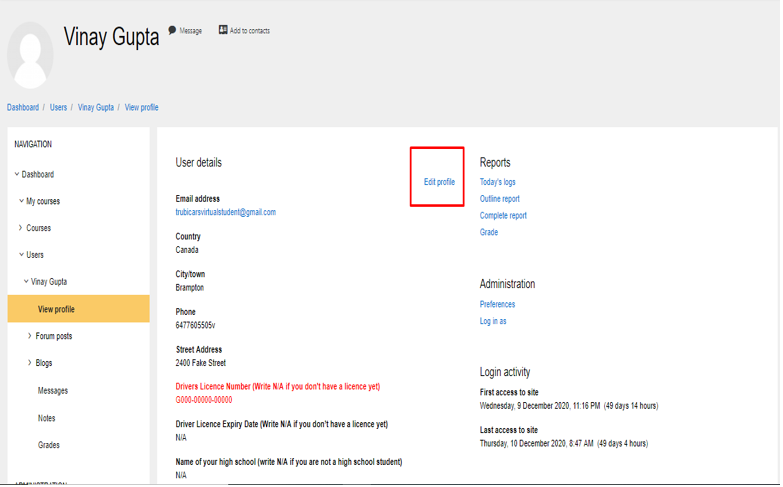
Under the student account, click on the student name under “First Name /Surname” column to open student account, as shown in the screenshot below:
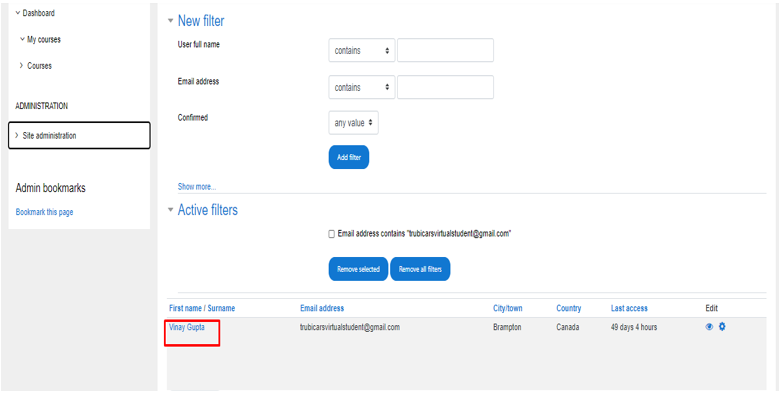
-
In the student account, click on “Edit Profile” option:
-
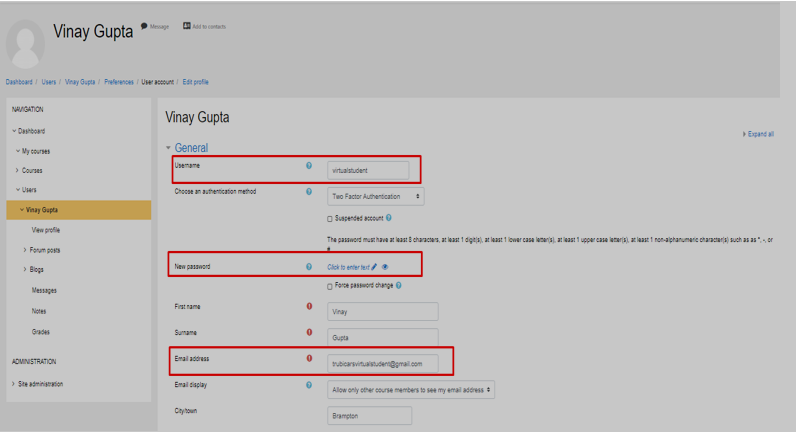
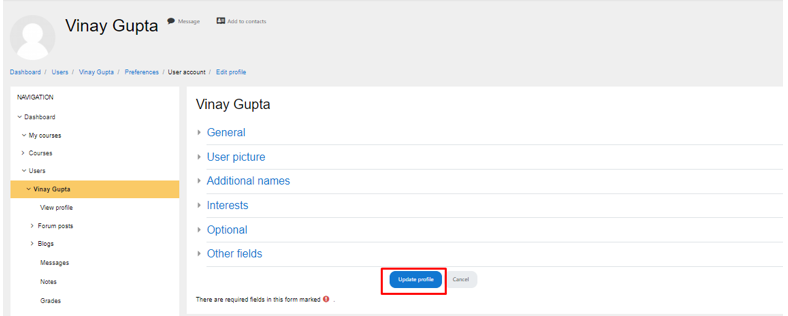
In the ‘Edit Profile’ page, you can manually change student information such as username, password, email address, phone number (under ‘Other Fields’). You can also correct for mistakes which students might have made while creating their accounts such as correct the spelling of their names and enter correct address.
-
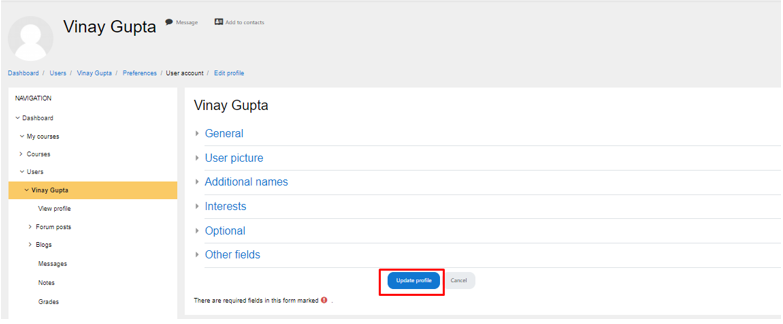
Click on “Update Profile” button to save the changes.
-
How to upload a picture of a student’s licence in their account?
In cases when students are having a hard time uploading the picture of their driver licence on the website, we can assist the to upload the picture of their driver licence to their account manually.
- Login to your Trubicars account.
-
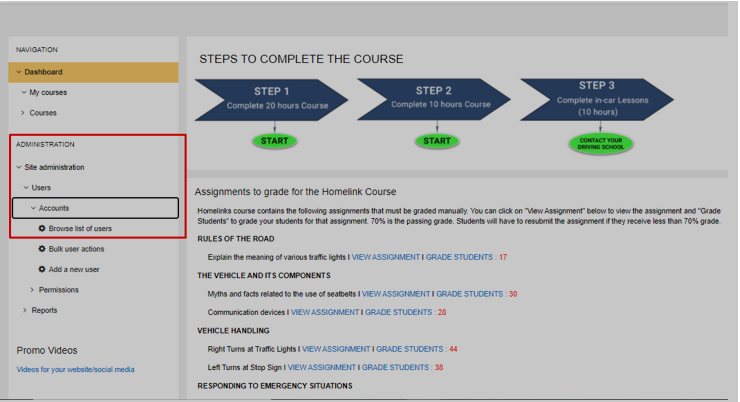
On the Dashboard, under Administration, go to Site Administration > Users > Accounts and click on ‘Browse list of users’ as shown in the screenshot below:
-
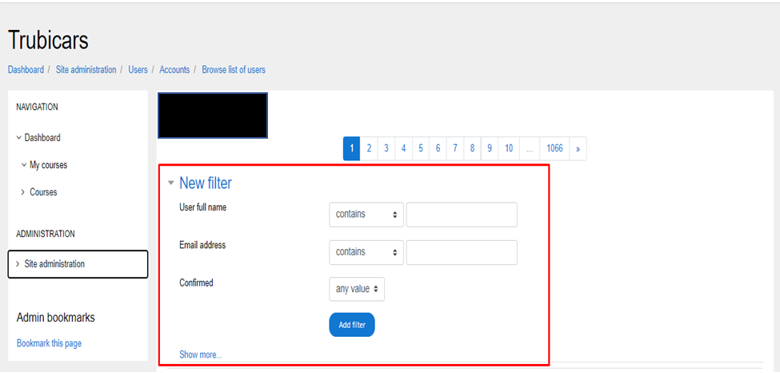
On the user database page, use “User full name” filter or “Email address” filter to find the student account whose driver licence picture you need to upload,as shown in the screenshot below:
-
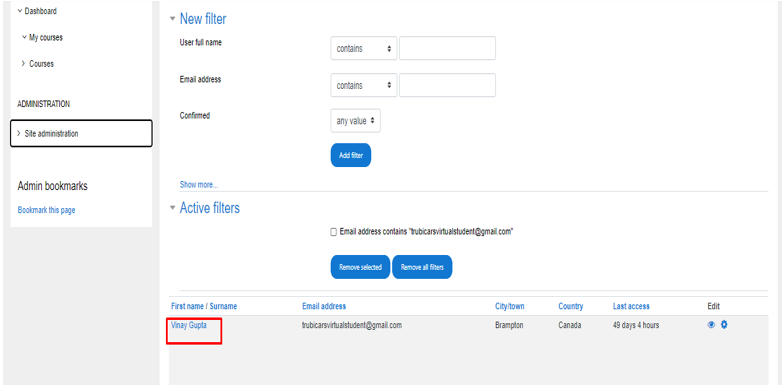
Under the student account, click on the student name under “First Name /Surname” column to open student account, as shown in the screenshot below:
-
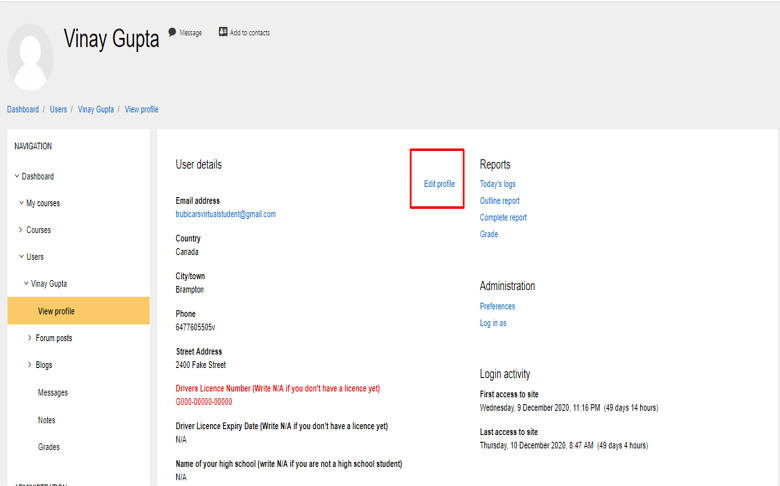
In the student account, click on “Edit Profile” option:
-
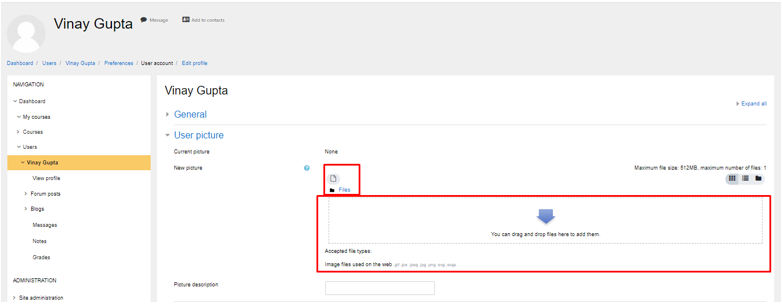
In the ‘Edit Profile’ page, you can manually upload the picture of student’s driver licence in “User Picture” section. Either drag and drop the picture of the licence in the box or click on add file button and browse the picture on your computer.
-
Click on “Update Profile” button to save the changes.
-
How to assign tickets and close them? Once the issue mentioned in the ticket is resolved, inform the student by call/email/text message.
Tickets are used by students to inform the technical support team of the issue they are facing with the online curriculum and work
- Login to your Trubicars account.
-
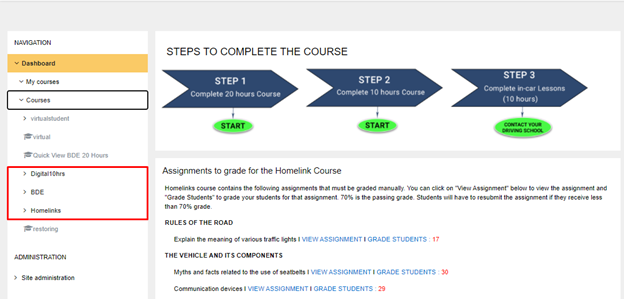
On the Dashboard, select Dashboard > Courses > and click on the course in which the student has raised a ticket, as shown in the screenshot below:
-
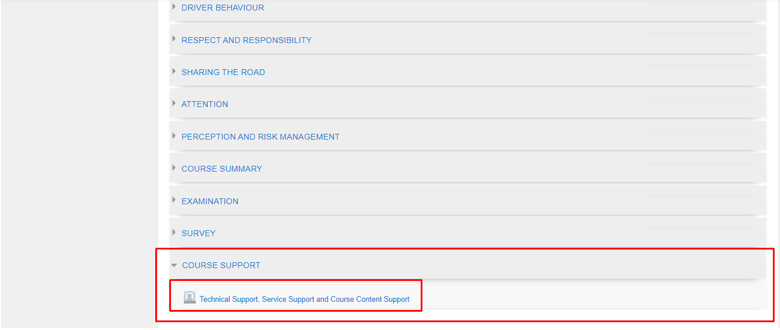
On the course page, click on “Technical Support, Service Support and Course Content Support” option under ‘COURSE SUPPORT’ module:
-
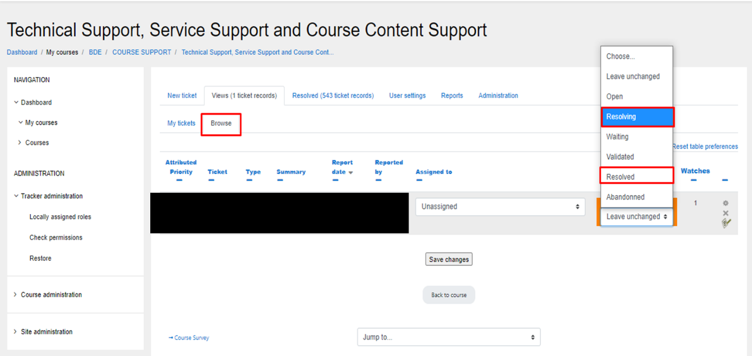
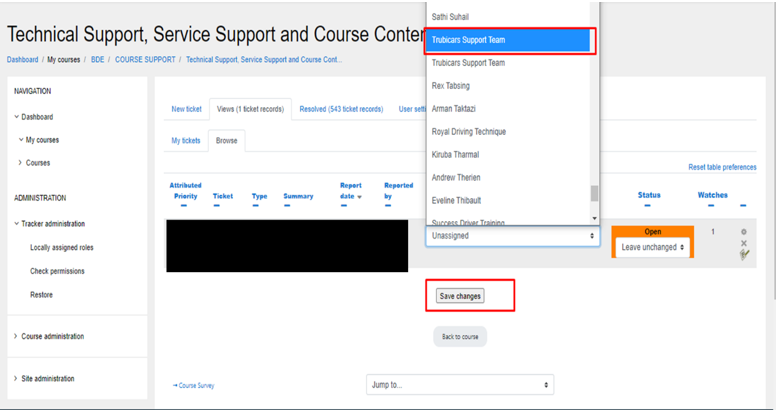
On the “Technical Support, Service Support and Course Content Support” page, click on “Browse” button to find open tickets.
Under the status of the ticket, using the drop-down menu, change status to “Resolving” while you are working on the ticket and change status to “Resolved” when you have resolved the issue mentioned in the ticket:
-
Under Assigned to column, assign the ticket to the person responsible for resolving the ticket. For technical issues, assign ticket to “Trubicars Support Team”.
Click on Save Changes button to save the changes made to status of the ticket.
-
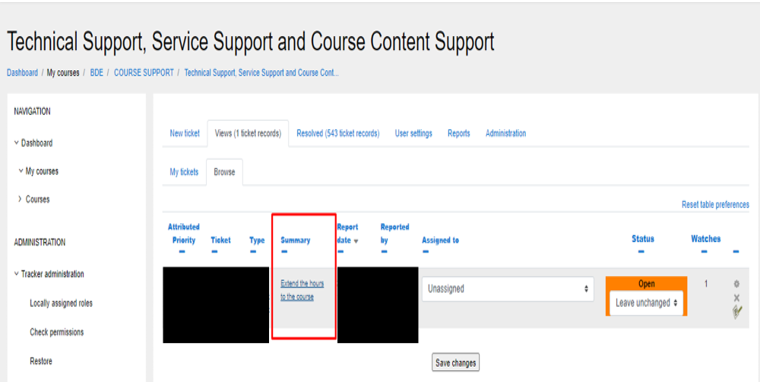
Under summary, click on the title of the ticket to open ticket and add your comments on the ticket:
-
On the ticket page, you can find the description of the issue mentioned by the student under “Description” section.
Click on “Turn Editing On” to add your comments to the ticket
-
How to create a student account?
In cases when students are having difficulty creating their account on Trubicars website, we can assist them by manually creating their student account.
- Go to website : https://elearning.trubicars.ca/auth/mfa/signup.php
-
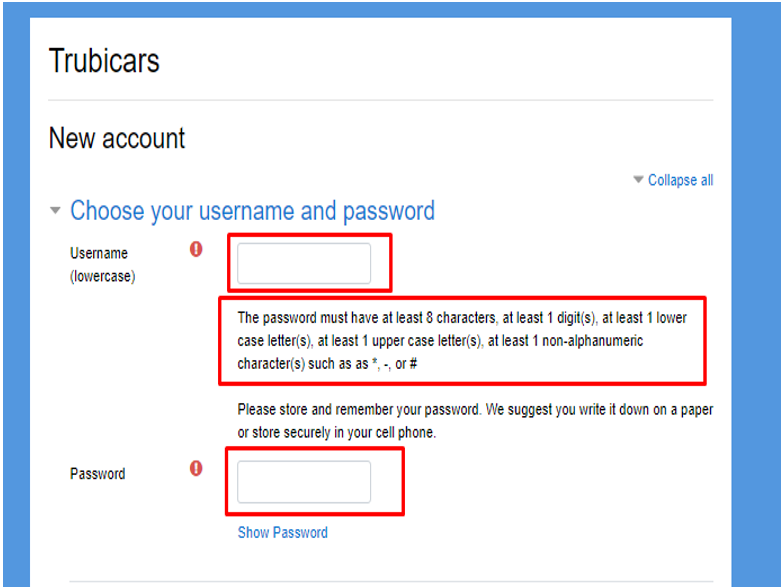
In the new account page, enter a username and password for the student account. You can enter the username and password as requested by the student or choose a username and password which will be easy for student to remember.
Please follow the guidelines and requirements of a password which includes that the password must have at least 8 characters, at least 1 digit(s), at least 1 lower case letter(s), at least 1 upper case letter(s), at least 1 non-alphanumeric character(s) such as as *, -, or #
-
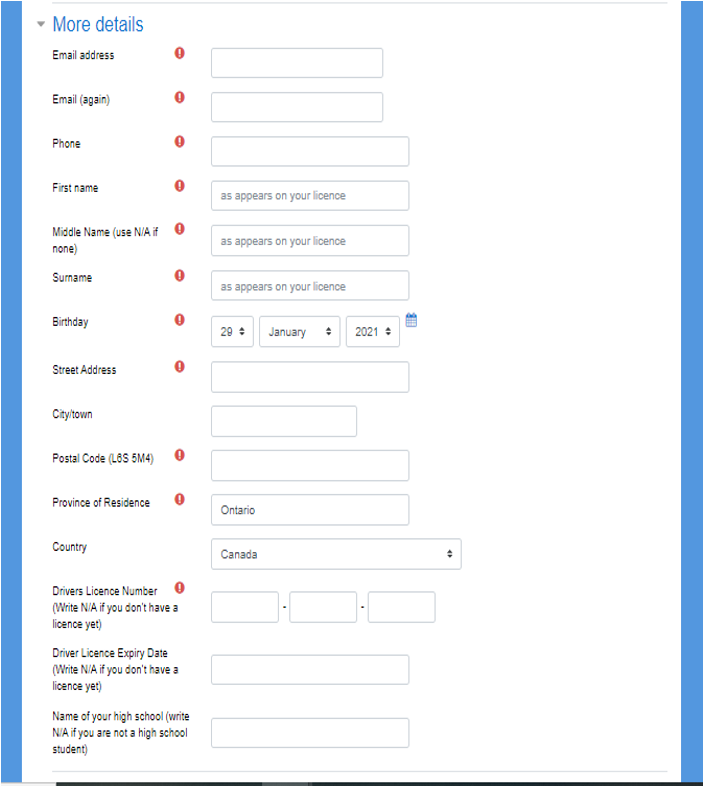
In the more details section, enter the details of the student as mentioned on the webpage.
Please ensure that you have collected the correct details from students to enter in this section.
Note: While entering the phone number of the student, check with student that he has access to the phone and can receive text messages on the number. Security code during student authentication step of the course is sent to the same number.
-
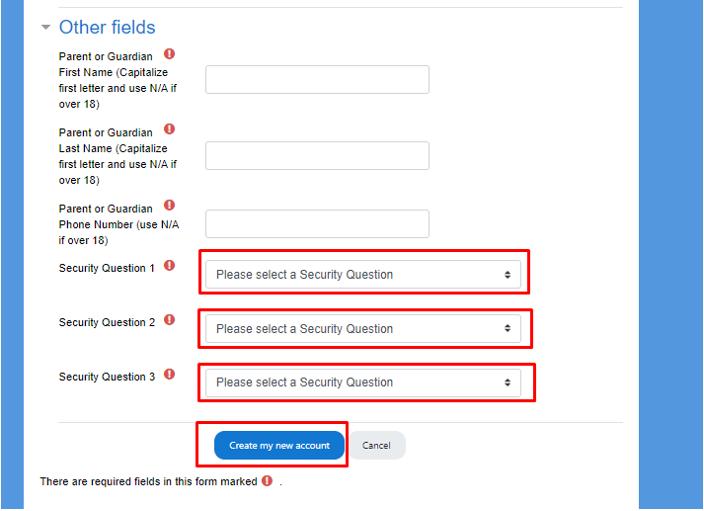
In the Other Fields section of the webpage, enter the Parent or Guardian details of the student. Choose N/A if the student is over 18 years of age.
Choose three security questions which are used for authenticating the identity of the student. Please ensure that the student chooses unique questions and remembers the answers to these questions.
Click on “Create my account” button to save the changes and create student account.
-
How to generate an enrollment key?
In cases when driving schools are having difficulty to generate an enrollment key for the student, or have requested the support team to generate an enrollment key for the student; we can login to their account and generate an enrollment key for the student.
-
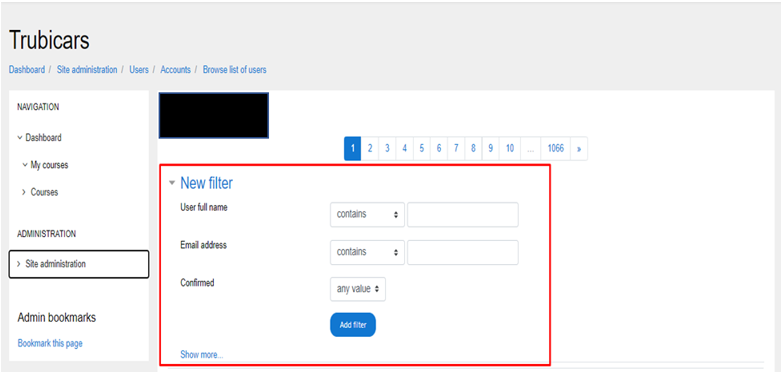
On the user database page, use “User full name” filter or “Email address” filter to find the account of the driving school:
-
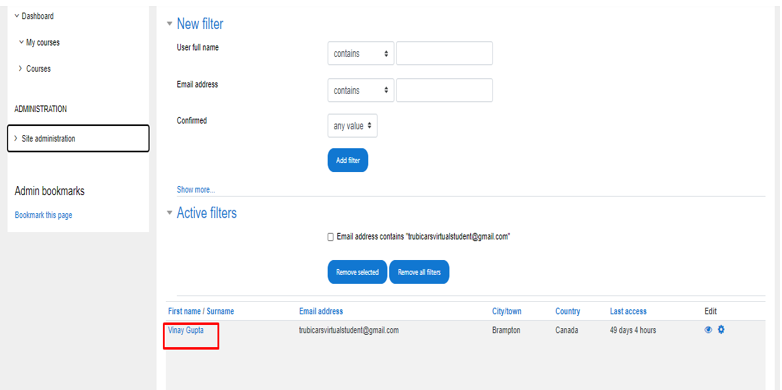
Under the driving school account, click on the name under “First Name /Surname” column to open account, as shown in the screenshot below:
-
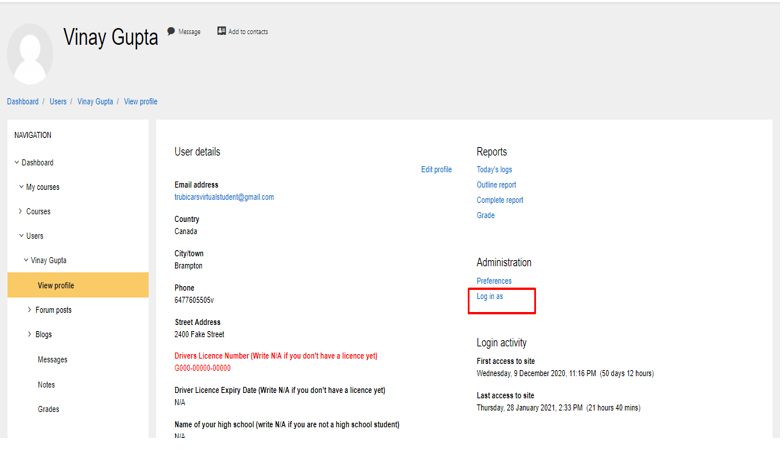
In the driving school account, click on “Log in as” option:
-
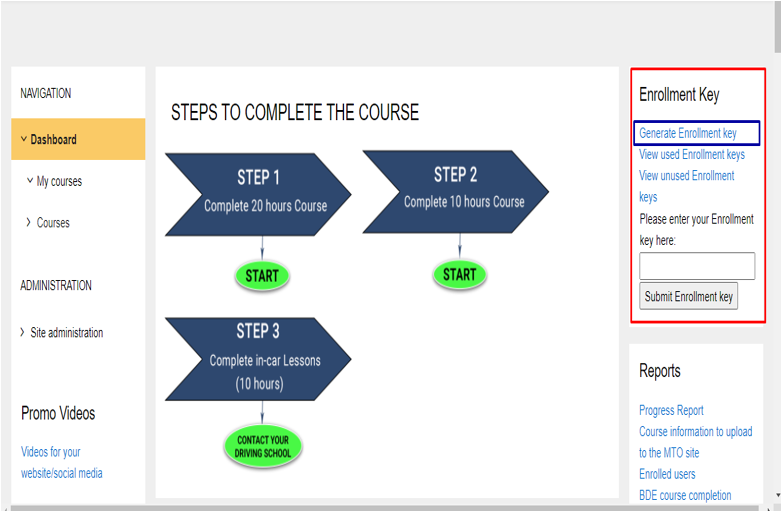
You are now logged into the driving school account. On the Dashboard, click on “Generate Enrollment Key” option as shown:
-
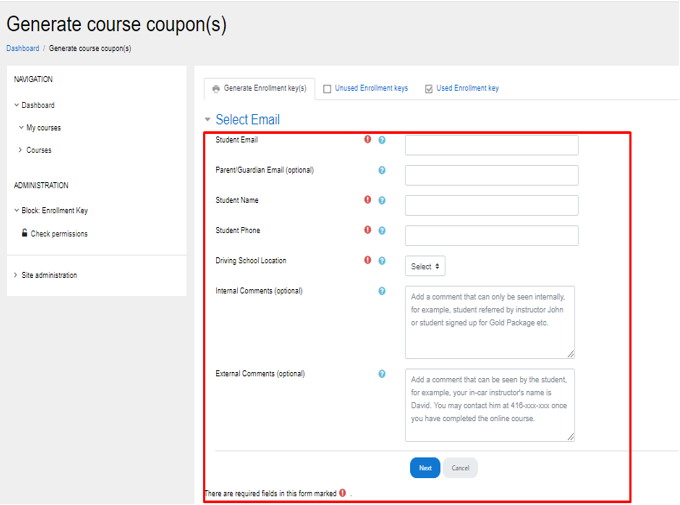
On the “Generate Course Coupon(s)” page, enter ‘Student Email’, ‘Parent/Guardian Email (optional)’, ‘Student Name’, ‘Student Phone’ and ‘Driving School Location (for driving schools operating in more than one locations)’.
Click on “Next” button to save the changes.
-
On the user database page, use “User full name” filter or “Email address” filter to find the account of the driving school:
-
How to manually enter an enrollment key into student’s account?
In cases when students can’t find enrollment key in the confirmation email sent to them by Trubicars, we can find the enrollment key into “Unused Enrollment Keys”, log into the student’s account and manually enter the enrollment key into the student account.
-
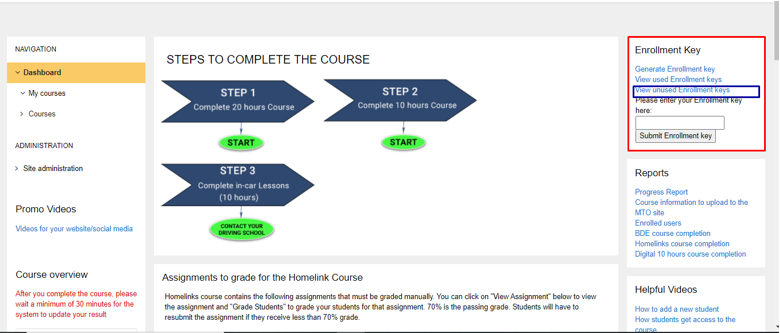
On the Dashboard, click on “View Unused Enrollment Key” option as shown:
-
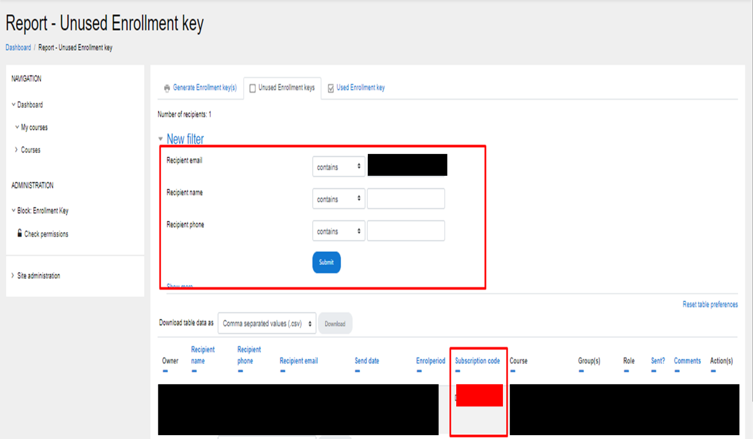
On the Unused enrollment key page, use the filter option and enter the recipient email/ phone/ name to find the enrollment key for the student:
Copy the enrollment key mentioned under “Subscription code” column.
-
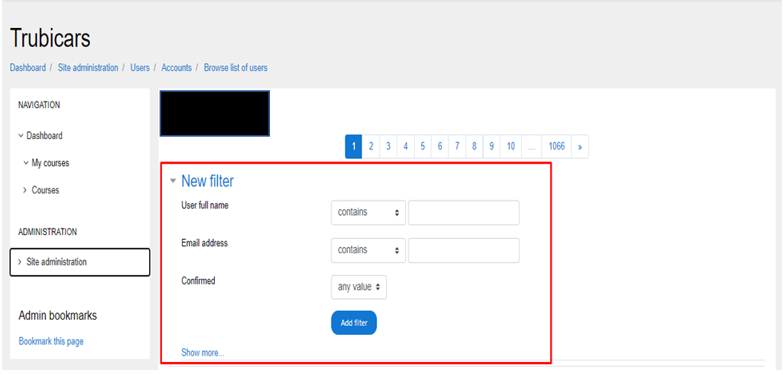
On the user database page, use “User full name” filter or “Email address” filter to find the account of the student who needs help with enrollment key.
-
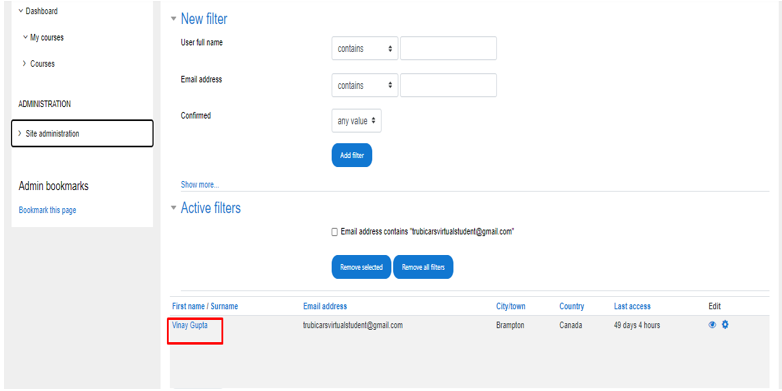
Under the student account, click on the name under “First Name /Surname” column to open account, as shown in the screenshot below:
-
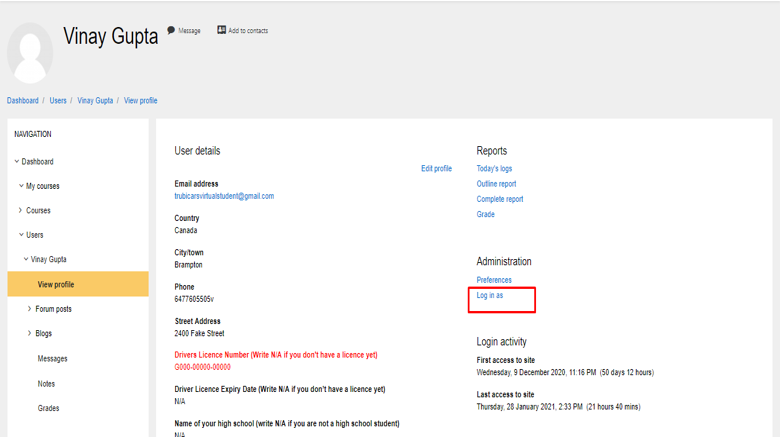
In the student account, click on “Log in as” option:
-
After you are logged into student account, when you click on any courses, the system requires you to enter an enrollment key.
Enter the enrollment key you copied into student account and click on Submit.
Log out of the student account and inform the student that we have entered the enrollment key into student account, and they can access the curriculum now.
-
On the Dashboard, click on “View Unused Enrollment Key” option as shown:



